
Browser Use
Browser Use gives a Task a visible, approval-gated browser for reading pages, interacting with sites, and collecting reviewable evidence. The main Agent owns the Task's Browser authority and can delegate a narrower operation to an eligible Subagent. Kairo owns the Task, permission, and provider binding; a web page cannot grant itself more authority.
Choose a Browser
| Provider | Best for | Identity and storage |
|---|---|---|
| Built-in Kairo Browser | Normal research, local web testing, and a shared page you want to watch or control. | A persistent Kairo browser profile, separate from Chrome and isolated by authenticated Kairo owner; Tasks and their eligible Subagents for that owner share it. |
| Google Chrome | A site that needs an existing Chrome login or profile-specific extension state. | Uses the explicitly paired Chrome profile and its signed-in state. |
| Remote Browser Host | Source and browser execution that must stay on a managed remote machine. | Owned and configured by that Host. |
The selected provider is bound to the Task so a reconnect does not silently switch identities. This provider binding is the saved Task record that names the built-in, Chrome, or remote provider the Task is allowed to use. Ask the Agent to use the built-in Browser or the paired Chrome provider explicitly when the choice matters.
The built-in profile ID is a non-reversible projection of the authenticated Kairo owner. Cookies, site storage, proxy/download handling, and address history use a separate persistent Electron partition for each owner. A Subagent inherits its parent Task's exact profile and cannot select or open another owner's profile. Old Browser checkpoints that predate this owner binding are rejected instead of being silently assigned to the current account.
Start with the built-in Browser
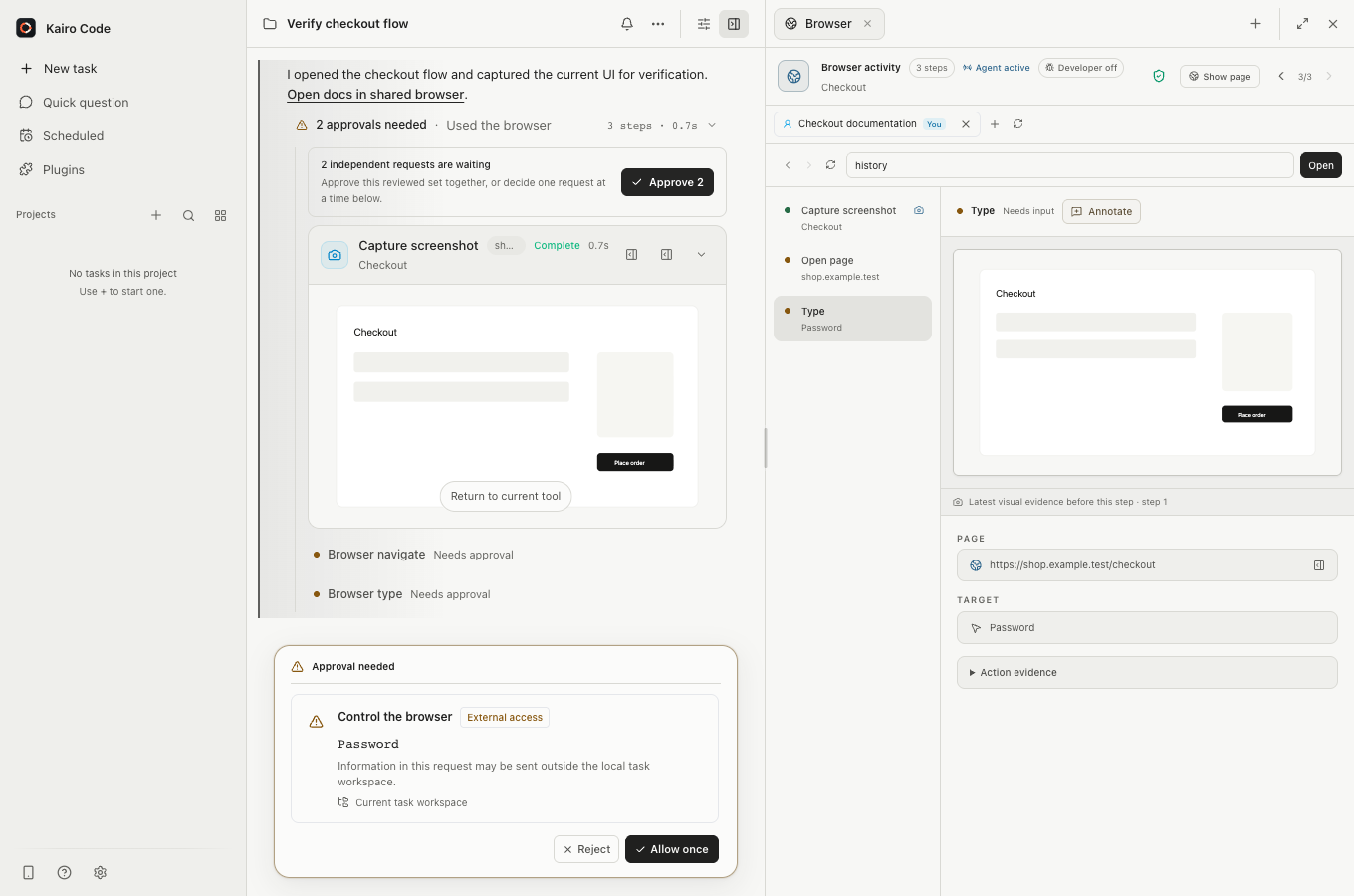
The built-in Browser is ready without an extension. Ask Kairo to open an HTTP(S) page, or open a link in the Task Browser yourself. The Browser panel shows the current page, Agent activity, screenshots, tabs, and who currently owns input.
Open Settings → Browser to disable Agent control while keeping manual browsing available, set download and link behavior, manage Developer Mode, or clear browser data.
Pair Google Chrome
Chrome pairing is optional and local to one computer:
- Open Settings → Connections → Google Chrome (optional).
- Choose Reveal extension folder.
- In
chrome://extensions, enable Developer mode, choose Load unpacked, and select that folder. - Choose Generate pairing code in Kairo Code.
- The pairing card displays Local socket and the single-use code, with a copy button beside each value. Copy both values from that card into the Kairo extension in Chrome within two minutes; do not guess or reuse an endpoint from another Host.
Revoke the pairing from the same Settings card when it is no longer needed. Revocation disconnects the provider and rejects its reconnect credential. Existing Tasks bound to Chrome then fail closed; they do not silently fall back to the built-in Browser. Pairing does not give Kairo access to Chrome's general browsing-history API; it operates only on Task-owned tab groups.
Kairo preserves a reconnect credential only across an explicitly clean Host shutdown. After a crash, forced termination, damaged shutdown marker, or credential-storage failure, the next Host start revokes the stored credential and requires a new pairing. If durable revocation itself cannot be written, live Chrome control is still disconnected immediately and pairing/reconnect remain fail-stopped until Host storage is repaired and revocation is retried. This deliberate tradeoff prevents an old credential from becoming valid again after restart.
The Settings health state may call that durable revocation record a tombstone. It is simply a small saved marker proving that the old reconnect credential must stay invalid after restart. If the marker cannot be saved, repair Host data-directory permissions, disk space, or the data volume, then retry Revoke before pairing again.
Check the site before replaying an action
A Stop, Chrome disconnect, or Host crash can happen after the site accepted a click or submission but before Kairo received and saved the result. After reconnecting, inspect the site's real state first. Do not blindly repeat a payment, message, form submission, publication, or other action that could happen twice.
Recover an unknown Chrome action outcome
When a failed Browser activity says the previous result is unknown, the interrupted action is not safe to retry automatically:
Do not repeat the click, typing, upload, message, form submission, publication, or payment.
Choose View Browser session on the failed activity card when it is available, then inspect the current page and the paired Chrome Task tab group.
Send a new message such as:
Inspect the current page with a fresh read-only Browser observation. Do not repeat the previous action. Report whether [the expected result] is already visible; if the site does not prove it, stop and ask me.
Authorize a new action only after the site state shows whether the first one happened. If the page cannot prove it, use the site's own activity, order, message, or audit history—or contact the site operator—before deciding.
This fresh observation creates a new recovery boundary. It does not turn the interrupted action into a retryable command or prove exactly-once behavior at the website.
Signed-in pages are sensitive
Chrome inherits the paired profile's active sessions. A semantic snapshot redacts interactive control values, but screenshots, readable page content, page titles, and the result of an action can still contain private information. Approve only the site and operation you intend.
How approvals work
Browser permissions are Task-scoped and narrower than a generic tool-session grant:
| Request | Approval behavior |
|---|---|
| Read a new HTTP(S) site | Approve once or grant that exact origin for ordinary Browser reads. |
| Click, type, navigate history, handle a dialog, download, or manage tabs | Always requires an explicit one-time decision. |
| Console, network, performance, or DOM/style diagnostics | Requires Browser Developer Mode and a separate developer-origin grant. |
| A read or page action changes origin after approval | The Host rejects the operation before returning captured content. |
| Explicit navigation follows an HTTP redirect | The Host returns bounded final-page state; the final origin is a new approval boundary for the next read or action. |
An origin is the scheme, host, and port—not an entire wildcard domain. Cross-origin frames require their own explicit frame origin and are checked against the latest page inventory as well as the approved top-level origin. Disabling Browser control revokes cached Task/site grants immediately.
If an already-approved page changes origin while a read or action is executing, Kairo fails closed. An explicit navigate request may follow HTTP redirects because its target was reviewed separately; Kairo records only bounded final-page state and requires approval of the final origin before the next read or action. List or select the current tab if needed. Neither a failed call nor a navigation receipt is treated as a reusable grant for the new page.
Tab recovery is intentionally privacy-minimal. The Agent receives an opaque tab identity, which tab is current, the exact HTTP(S) origin, and necessary loading or dirty state. Tab titles, URL paths, queries, fragments, and JavaScript dialog text are not included in tab-list results. Select the tab and approve its origin before asking the Agent to read page content.
Click and type compatibility
Agent semantic click and type operations are bound to the exact approved renderer document. Kairo checks the origin and element again in the same renderer task that performs the action; it does not send sensitive text or a delayed pointer event to whichever page happens to be current later.
This safety boundary uses DOM activation and native value setters. The resulting click is a synthetic HTML activation rather than a trusted physical pointer event. A site that explicitly requires event.isTrusted, a hardware gesture, or a browser-owned chooser may decline the action. Kairo reports an unmet page expectation as unverified instead of falling back to an origin-racy native event. Choose Take control and complete that step manually; manual pointer and keyboard input remains native.
A field-value receipt confirms only that the text was set. It does not prove that a page accepted the input in its business logic, saved a record, or submitted a form. Desktop and Agent results state this narrower scope. Use an explicit expect condition for an intended visible page result, or inspect the page with a fresh read-only observation before claiming completion. An unmet expectation is a non-retryable action result; do not repeat the input to obtain a stronger receipt.
Download boundaries
Agent downloads are staged under the Task workspace, bounded to 250 MiB, independently hashed, and committed atomically only when the destination does not already exist. The built-in Browser also treats each tab's native page container as a one-shot Agent download authority. After one Agent download attempt—successful, cancelled, timed out, or failed—open a new Browser tab before starting another download. Reloading or navigating the same tab does not reset this boundary.
Late native download events from a retired tab are cancelled, even if Chromium labels them as a user gesture. This means a manual download from that same retired tab is also blocked: open a new tab first. The fresh tab shares the built-in Browser profile and sign-in cookies, but unsaved page state is not copied.
Take control and hand it back
You and the Agent can use the same visible built-in page, but only one side owns input at a time. Choose Take control before typing or clicking manually. Human takeover invalidates automatic site reuse; the next Agent action must be approved explicitly and acts as the intentional hand-back.
Showing or hiding the Browser panel does not by itself transfer control. Stop requests propagate to the active command on the built-in or remote Host, and Kairo holds later commands until the provider acknowledges cancellation or its connection is recycled. For paired Chrome, stopping a dispatched command also disconnects the current control channel and requires Chrome to reconnect. The page may still have completed an action that Chrome accepted before disconnection, so inspect it before retrying. The same rule applies after a Chrome or Host crash: reconnecting proves control is available, not that the previous site action did or did not happen. Stop never erases browser data, pairing credentials, or Task evidence.
Local-owner boundary
The built-in profile, paired Chrome identity, and visible Browser surface belong to one local Host owner. The canonical local account is that Host's built-in single-owner identity, assigned only through its trusted loopback-only local or Desktop SSH path when that listener is not shared with a public proxy. Only Tasks created by that account can use the shared Browser, whether the operation comes from the Agent, a Subagent, or manual Browser controls. JWT-, API-token-, paired-device-, LAN-, and correctly configured reverse-proxy-owned Tasks and ownerless legacy Tasks fail closed: the UI does not offer Browser controls, and the server rechecks the owner at every input, observation, visibility, and provider-dispatch boundary.
A public proxy to a loopback-bound backend must disable loopback bypass; otherwise it can collapse this owner boundary before Browser checks run. See Host-wide Browser settings are available only to the canonical local owner. Other identities see a read-only state and must ask the Host administrator to make changes.
This owner ceiling is separate from Allow Agent control. A local owner can turn Agent control off and continue browsing manually. Turning the switch back on cannot grant Browser access to a remote or ownerless Task. Shared or multi-identity deployments must additionally set KAIRO_DISABLE_BROWSER_USE=true; per-Task checks are not a multi-tenant Browser-profile design.
Evidence and data cleanup
Snapshots and screenshots are bounded before they enter the Task, but evidence already attached to a Task is separate from live browser data.
- Clear browsing history removes Kairo address history only; sign-ins, cookies, Task screenshots, and evidence remain.
- Clear selected site data removes chosen Chromium data for an exact origin. Cookie removal may affect sibling subdomains because Chromium follows registrable-domain rules.
- Clear browser data signs out of sites, removes local cookies and history, and restarts the local Browser service. Stop running local Tasks first. Existing Task evidence remains.
A remote or built-in Browser Host keeps up to 128 Task sessions because each session can contain the only receipt proving whether an earlier page effect ran. Hiding the Browser, stopping event observation, disconnecting, archiving, or leaving a Task idle does not release that authority. Only permanent Task deletion retires the opaque Host session: active Browser execution must settle first, then the Host closes that Task's tabs and transient download authority before Kairo removes its receipts and makes the slot reusable. Repeating deletion is safe when the first cleanup response was lost.
If session or durable command-identity capacity is exhausted, permanently delete a Task you no longer need. If deletion reports a Host or checkpoint persistence failure, repair the Host/data volume or restart the failed Host generation, then retry deletion; do not manually remove an individual checkpoint or tombstone. Retirement prevents an old delayed command from reopening the deleted session, but it cannot guarantee exactly-once behavior for an external website.
One Host generation also keeps a non-evicting deny-list for up to 4,096 retired session identities so delayed requests cannot resurrect them. If that retired-identity ceiling is reached, restart the Browser Host to create a new Host generation before deleting more Browser-backed Tasks; Kairo does not discard an older deny entry to make room.
Current delegation boundary
A child can use Browser tools only when all of these boundaries admit the exact call:
- the parent Task is still active and Browser control is still enabled;
- the child is still
RUNNINGunder that parent; - the selected Agent Profile allows the requested Browser tool; and
- the parent's approval policy admits that exact tool name, arguments, child identity, and model call identity.
Eligible children can use only the parent Task's selected in-app provider and page, including an in-app provider hosted on the parent Task's remote Host. A child cannot select a provider or close the shared Browser session. If the parent is bound to paired Chrome, delegated Browser calls fail closed; the parent must deliberately select the in-app provider before delegating Browser work.
Admitted child actions are ordered with the main Agent and other children. A child does not receive a transferable page grant: the Host derives a separate one-shot invocation identity, binds each original model call ID to one exact tool-and-argument fingerprint, rechecks live parent/child and input authority at dispatch, and reconciles the result back into the parent Task before the next Browser command can start. A stopped delegated command uses the same cancellation fence as a parent in-app command. The built-in explorer Profile has no Browser tools; use the main Agent to collect evidence or create a narrower Profile when Browser access is genuinely needed.